Climate rules let you define acceptable conditions for your sensors once and apply them across your sites, rooms, and collections.
What you see when you open a rule
Click a rule to expand it. The Units tab lists every sensor the rule is applied to, with four columns:
- Unit Name: the sensor's name and the type of reading it monitors (for example, Humidity or Lux)
- Site / Area: where the sensor is located. Sensors with no assigned location show "No location"
- Current State: the sensor's latest reading, shown as a value badge
- Notification: whether a notification rule is active for that sensor, or "No notification rules" if none applies
Colour-coded readings
The Current State badge is colour-coded against the rule's thresholds so you can spot issues at a glance:
- Red: the reading has passed a critical threshold, either below the critical lower bound or above the critical upper bound
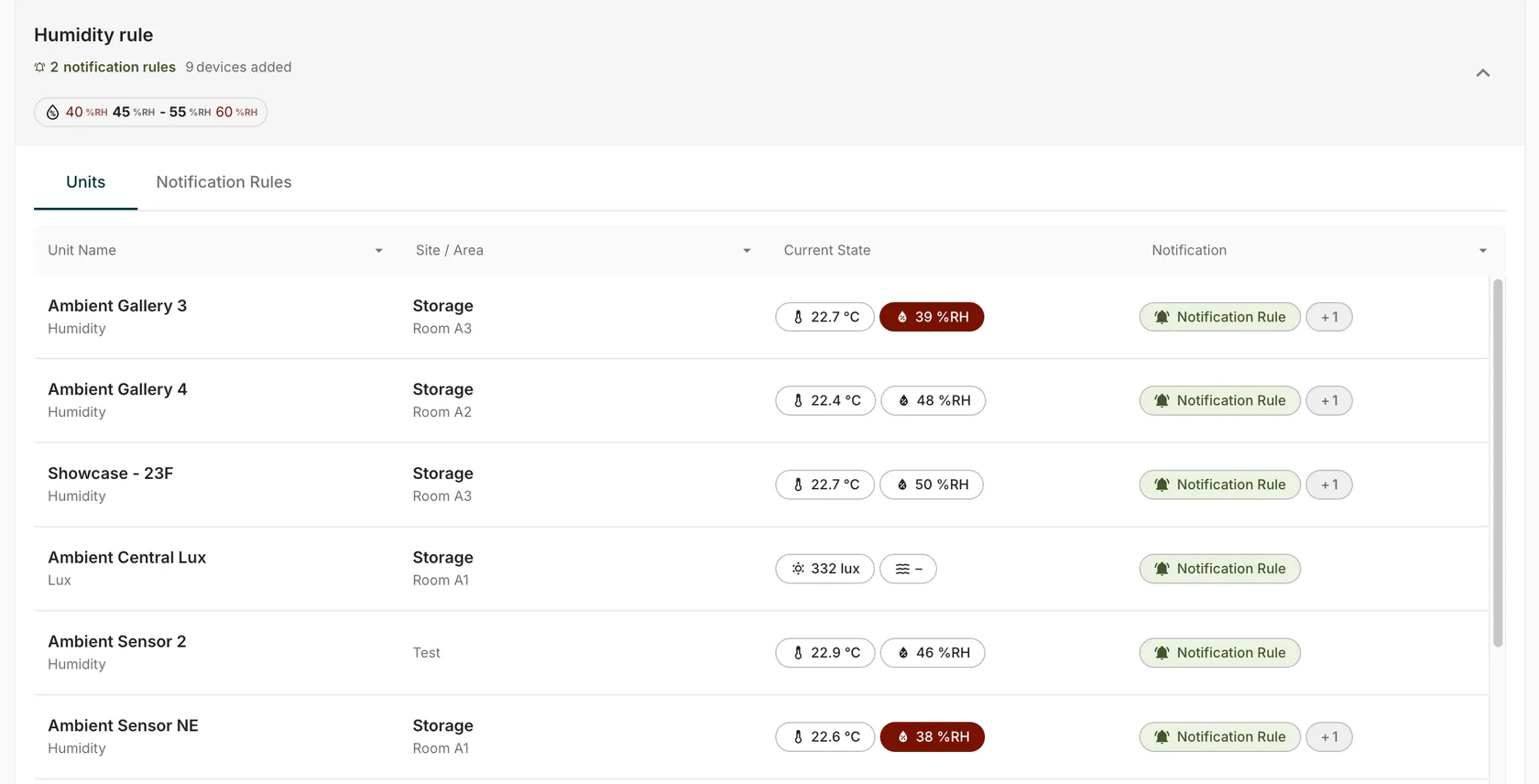
- Yellow: the reading sits in the warning band, between the critical and optimal bounds
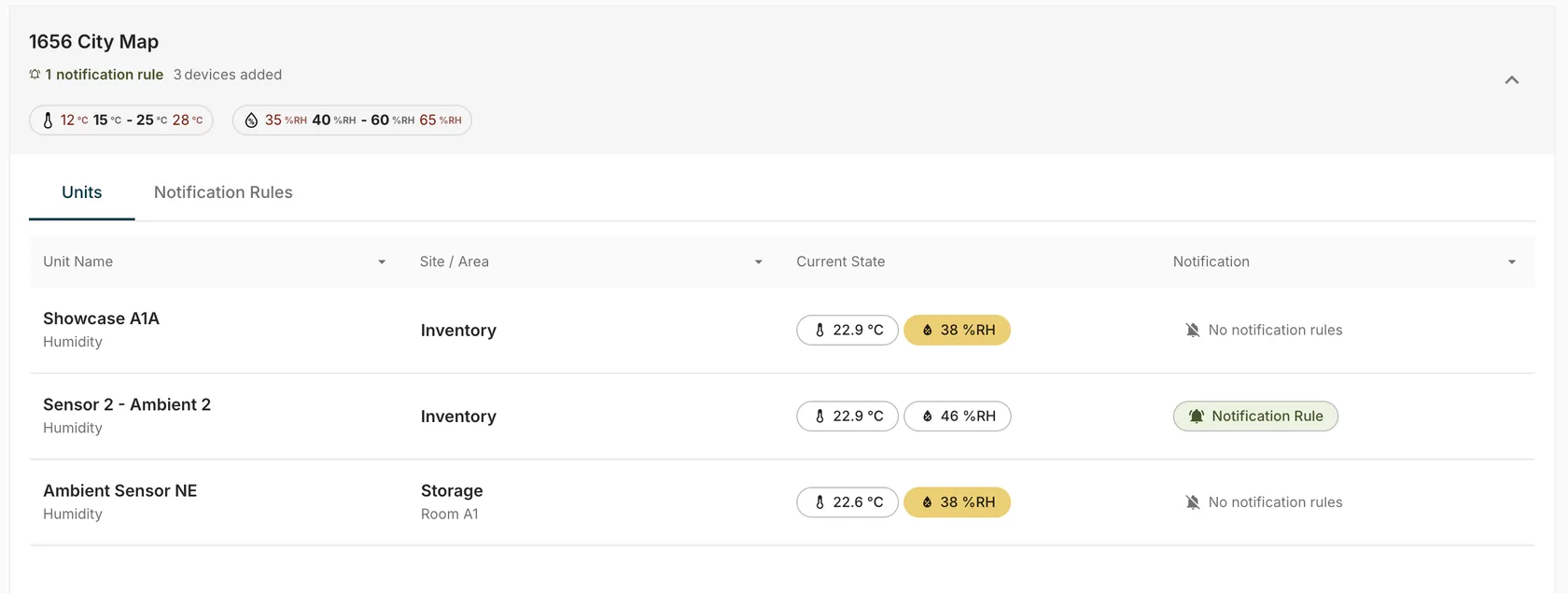
- No colour: the reading is within the optimal range
For example, if a humidity rule has a critical lower bound of 40 %RH, any sensor reading below 40 %RH is flagged red. If another humidity rule has a critical lower bound of 35 %RH and an optimal lower bound of 40 %RH, a reading of 38 %RH falls in the 35–40 %RH gap and is flagged yellow.
Select a guide below to learn more.
Understanding climate rules
Creating and configuring rules
Managing your rules